
“Please inspect block three today”
- the crop and active stage are missing;
- the inspection criteria are unclear;
- the message has to be reconstructed again tomorrow.
Farm tasks and team
Generate planned work from a cultivation plan or add a one-off task. Keep the facility, crop cycle, stage, date, priority, instruction, and assignee together—then see the completion status in the same production history.
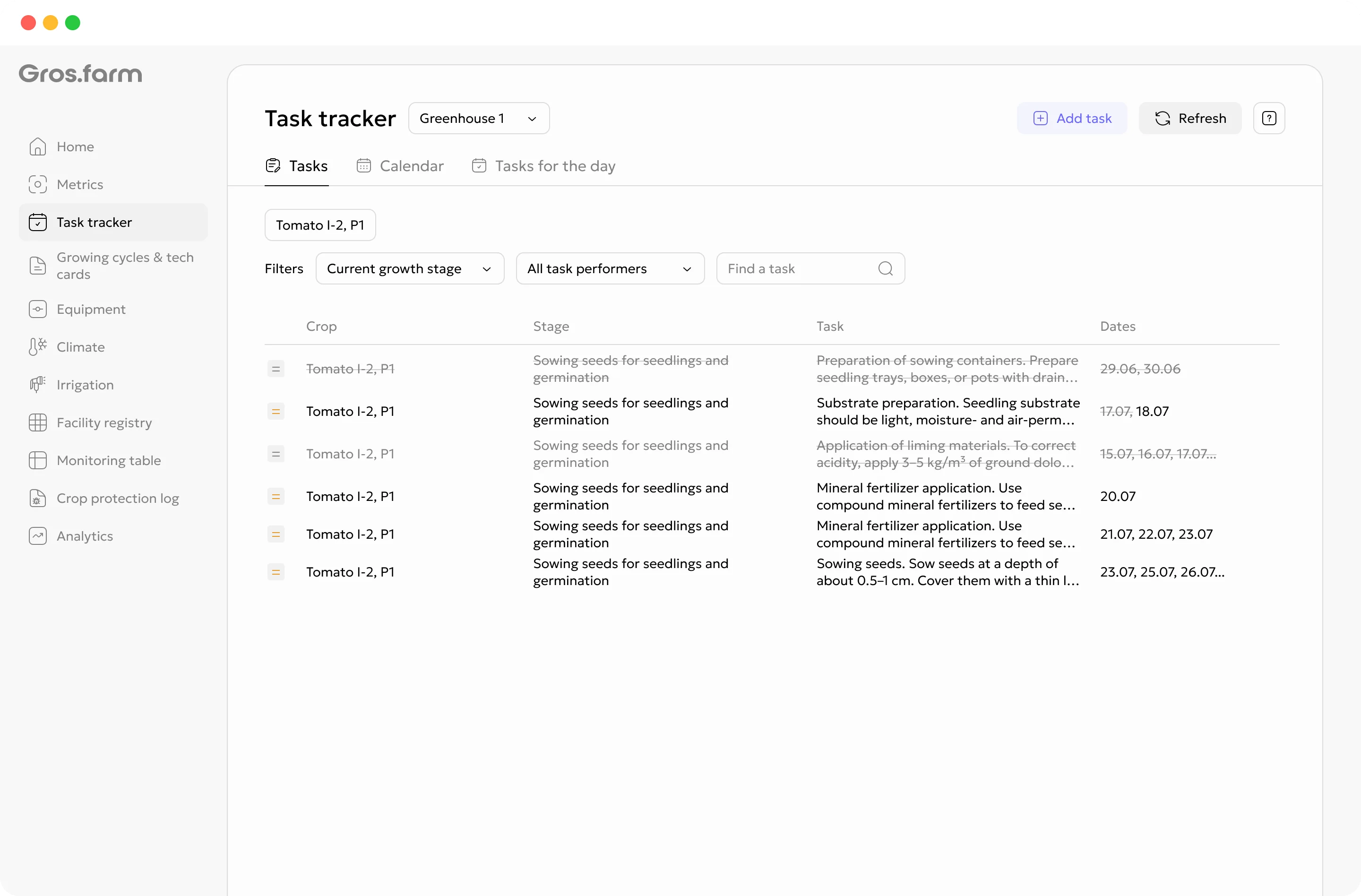
A task with production context
“Walk block three this morning” makes sense only to the person who wrote it. The team still needs the facility, crop, stage, inspection criteria, deadline, and responsible person.
One operating cycle
The cultivation plan holds repeatable operations. The task tracker places work on dates and assigns people. The employee workflow returns the completion status to the growing cycle.
Add the stage, recurrence, and clear instruction to the cultivation plan.
Create planned dates from the cultivation plan; add unplanned work manually.
Choose the production place, date, priority, and responsible person.
The team member closes the task and its status remains connected to the cycle.
Planned and unplanned work
Define recurring crop walks, measurements, pruning, sanitation, equipment checks, or harvest work in the cultivation plan. Generate the required dates for the active stage, then add one-off tasks when the team encounters an unexpected need.
The operation, stage, and instruction already exist. Choose the dates, priority, and assignees.
Create work for a leak, crop symptom, damaged plant, repair, or other unplanned event.


A task that needs no follow-up call
A useful assignment names the exact production place and active cycle, then adds the responsible person, date, priority, instruction, and available attachments.
For example: House 2, Block 3, tomato, active growing cycle.
For example: today by 10:00, high priority.
The task appears in that person’s daily plan.
Keep the checklist, procedure, and available supporting material inside the task.
Employee app
Team members see their assigned work with the place, crop, priority, and instruction. They do not need organization-wide management access to complete daily tasks.
See assigned tasks and their priority for the current day.
Check the place, crop, procedure, and available attachments.
The manager receives the updated status in the shared production view.
Tasks and available farm objects can be downloaded to the device. The team member can review the plan, complete work, and enter supported values offline. Changes synchronize when connectivity returns.


Completion record
A completion status records who closed the work and where it belonged. When the team encounters a deviation, a short field note and photo would make the result more useful.
The manager can see which task was completed, by whom, and in which facility and growing cycle.
A team member will be able to describe what was done, observed, or needs follow-up.
An image can show a crop symptom, equipment issue, or the result of completed work.
Management attention
Review work by date, assignee, facility, crop, or growing cycle. Focus on priority, open, and overdue tasks without checking every person manually.

Roles that match responsibility
Roles are assigned separately in each organization. One person can participate in several organizations with a different role in each. Current plan limits and administrator terms remain defined on the pricing page.
Manages the organization, access, and key settings.
Plans work, assigns people, and reviews completion.
Works with the cultivation context and available actual data.
Sees assigned tasks, opens instructions, and records completion.
Each team member joins through a personal invitation and works within the permissions assigned to their role.
Operational knowledge stays with the farm
Later, the team can reconstruct which operation was assigned to which facility, crop stage, and person. That context can be reviewed alongside observations and available metrics.
One operating principle across sectors
Each task stays tied to a real production place, crop or lot, date, responsible person, and result—even though daily work differs by sector.
Bring plant observations, photos, manual values, and available climate data into the cycle history.
Perennial cropsKeep the symptom, photo, stage, and follow-up action in context.
Controlled grow roomsGive growers and operators the date, priority, place, and instruction.
Controlled-environment productionRecord the batch, stage, observation, photo, and follow-up work.
Tasks and team FAQ
A Gros.farm task can remain connected to the facility, production zone, crop, growing cycle, cultivation-plan stage, date, and assignee. Completion therefore stays inside the production history instead of becoming an isolated checked item.
Define the recurring operation in the cultivation plan. For the active stage, an administrator can generate tasks for the required dates and then assign people and priorities.
Yes. Create a task manually, connect it to the relevant production place and crop cycle, then add the date, priority, instruction, and assignee.
The employee workflow supports offline access to downloaded tasks and available farm objects. Supported updates synchronize when the connection returns.
Completion status is available now. Notes and photos are presented on this page as planned functionality and are not described as released.
Yes. Use it as a personal operating plan: generate work from the cultivation plan, add one-off tasks, and mark completion yourself. Invite a team later if needed.
Order in daily farm work
Build the work plan from crop technology, assign people, and review completion without relying on scattered chats and paper lists.