Work with notes
Notes help you keep observations, comments, and photos about work in a greenhouse. They are available in the Gros.farm web and mobile apps.
Types of notes
- a general note belongs to the selected greenhouse; you can specify a crop if needed;
- a task note is created from a task card and remains linked to it. If the task has a crop, the note receives it automatically.
You can save a general note without a crop or a linked task.
Create a general note
- Open
Task trackerand go to theNotestab. - Select
Add note. - Enter the text.
- If needed, select a crop and add photos.
- Save the note.
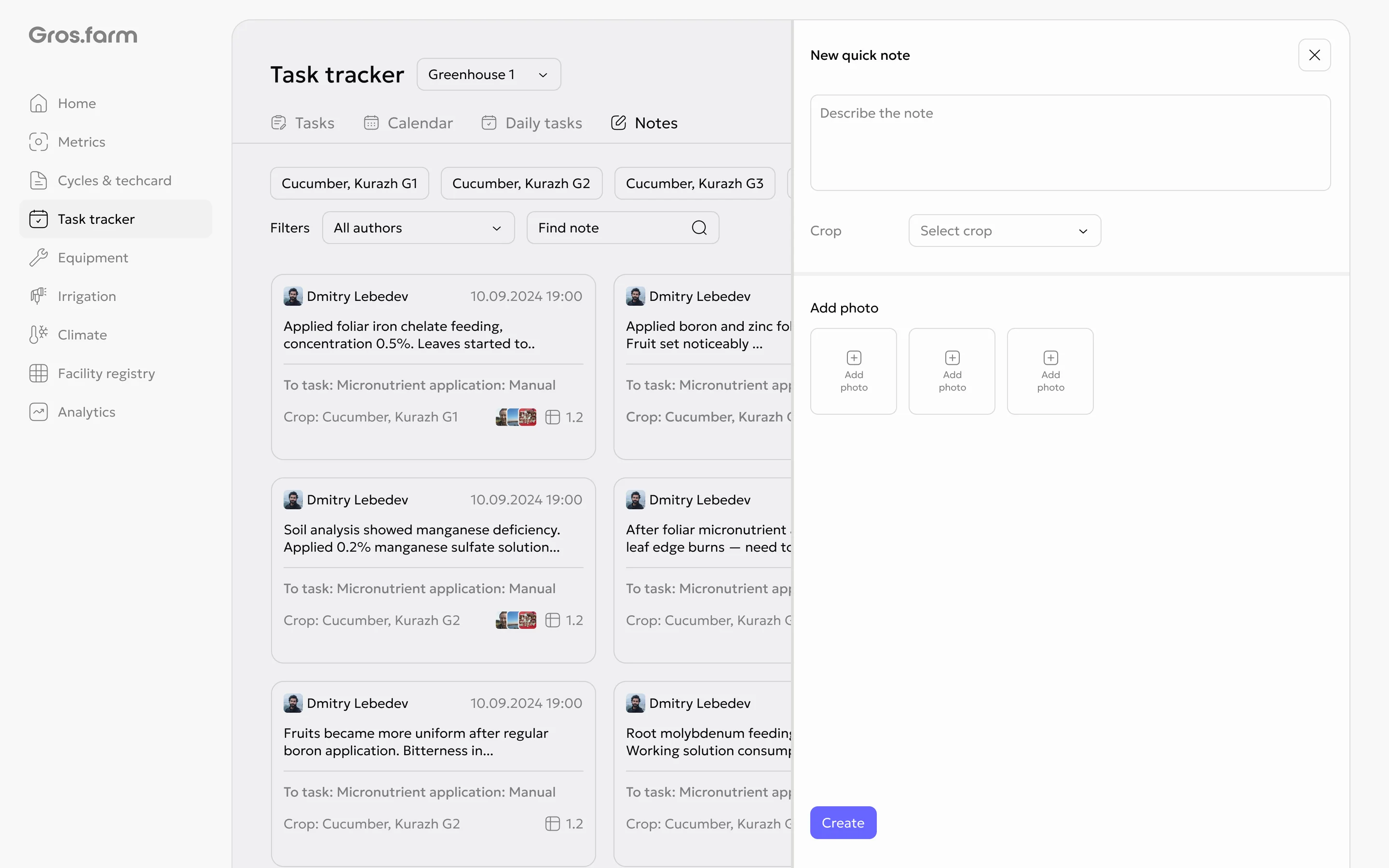
Add a note to a task
- Open the required task.
- Select the option to add a note.
- Enter the text and add photos if needed.
- Save the note.
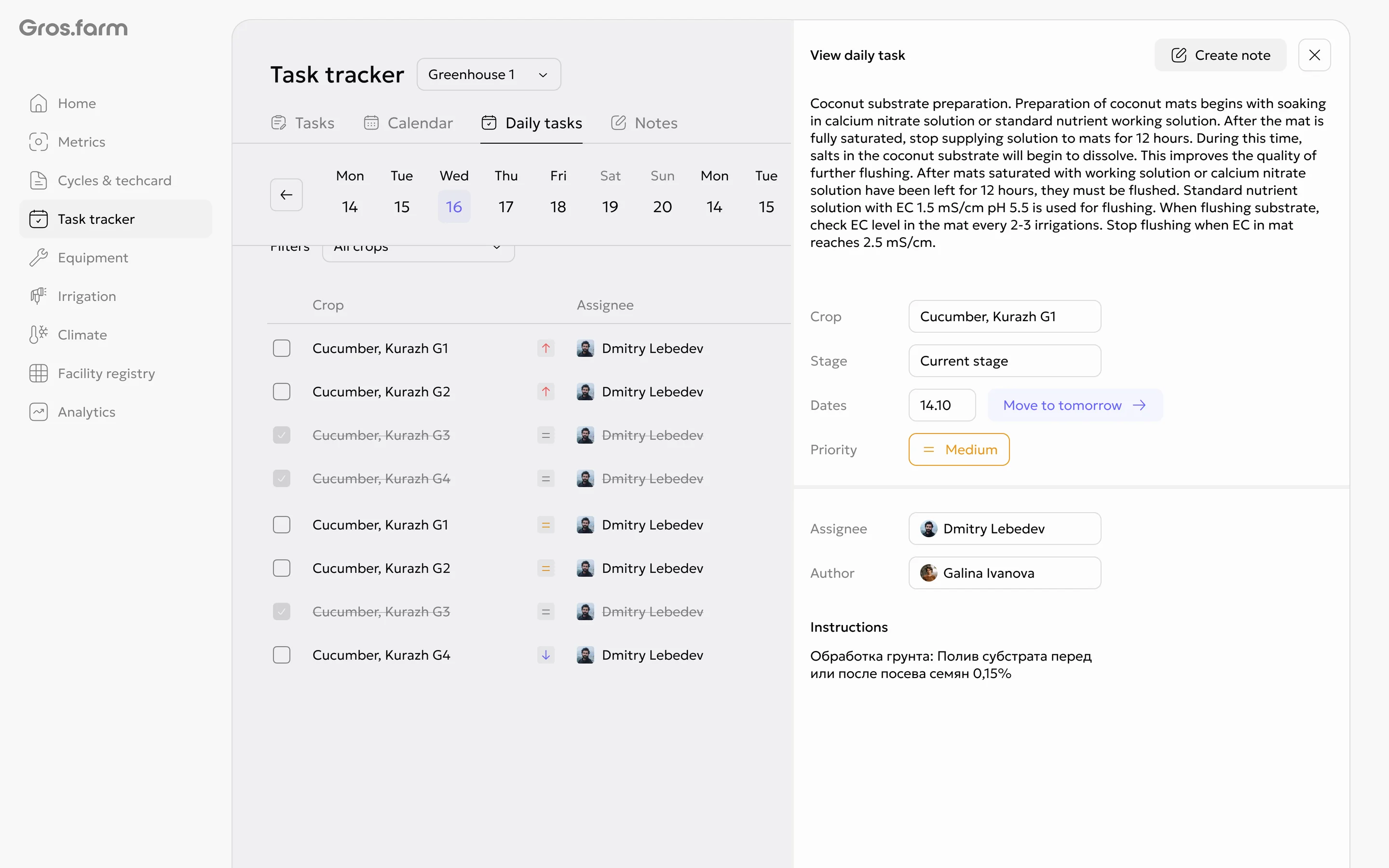
In the mobile app, Done + note creates the note first and then closes the
task.
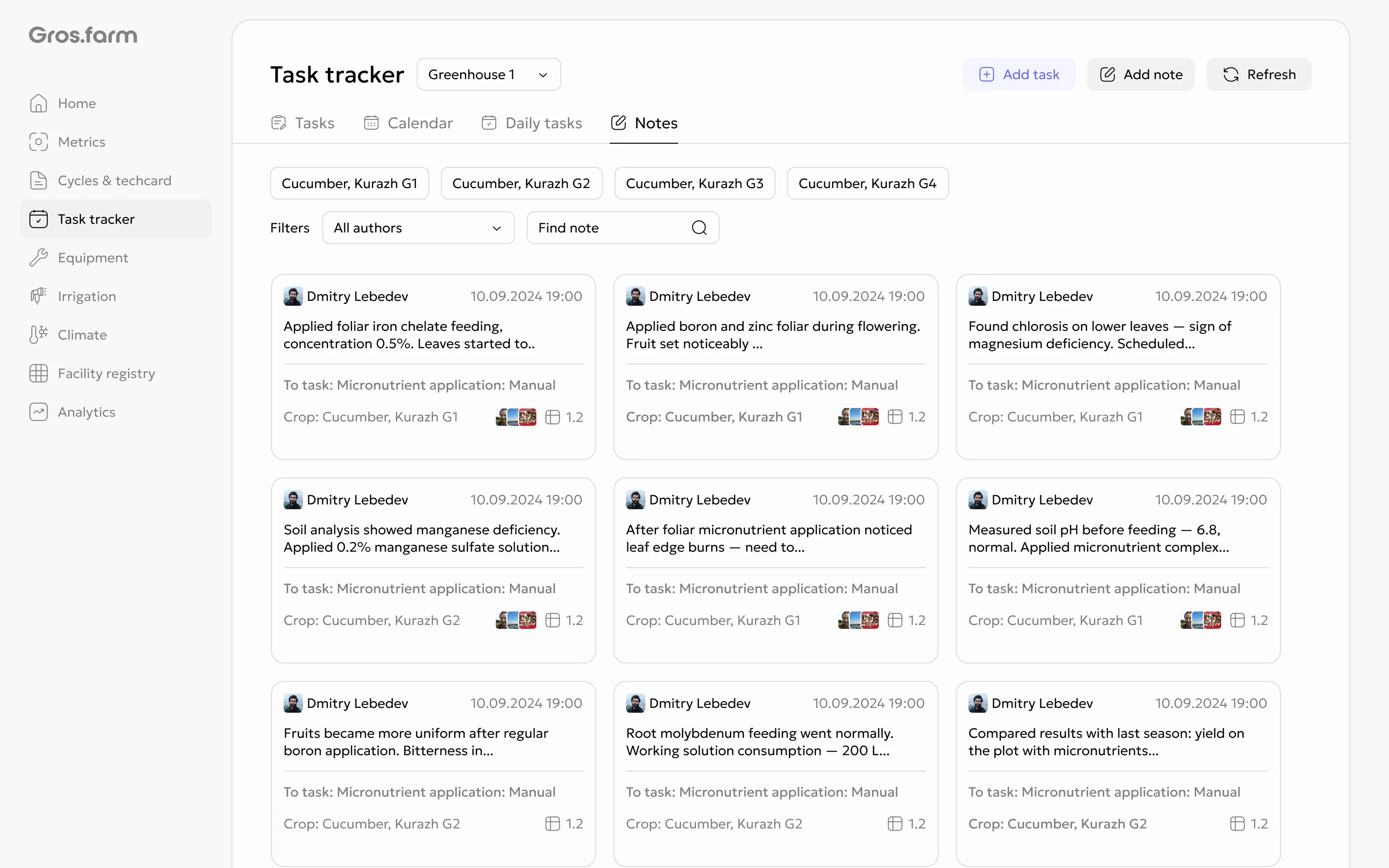
Find and open a note
On the Notes tab, you can view cards, search notes by text, and filter them
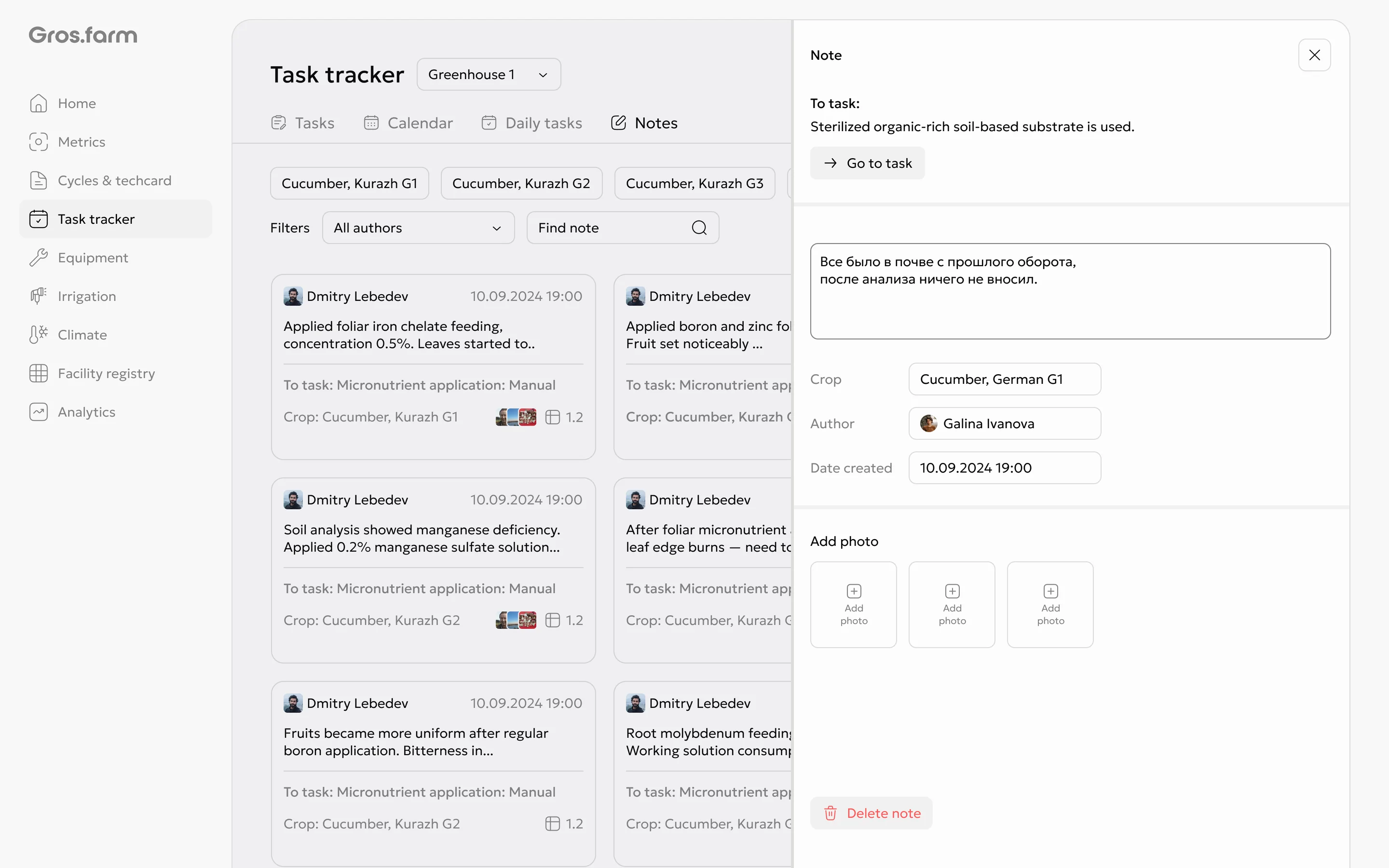
by crop or author. The details show the linked task, crop, author, date, and
photos. You can open the linked task from the note.
Open a card to read the full note, edit its details, add photos, or go to the linked task.
Access permissions
Owners, administrators, and experts can view the notes registry and note details, as well as edit and delete notes. Team members cannot see the registry or note history, but they can add a note while working with a task, including when closing it.