Connect a sensor to a metric
In the Gros.farm web app, you can connect one or more physical sensors to a supported metric. Exactly one sensor must be the primary source used for the metric.
Only owners and administrators can connect or disconnect sensors and change the primary source. Other users can view values but cannot manage sources.
Before you start
Make sure the control unit containing the sensor is linked to the correct facility or zone. If it is not, configure the equipment in the required production context first.
Connect a sensor
- Open Metrics.
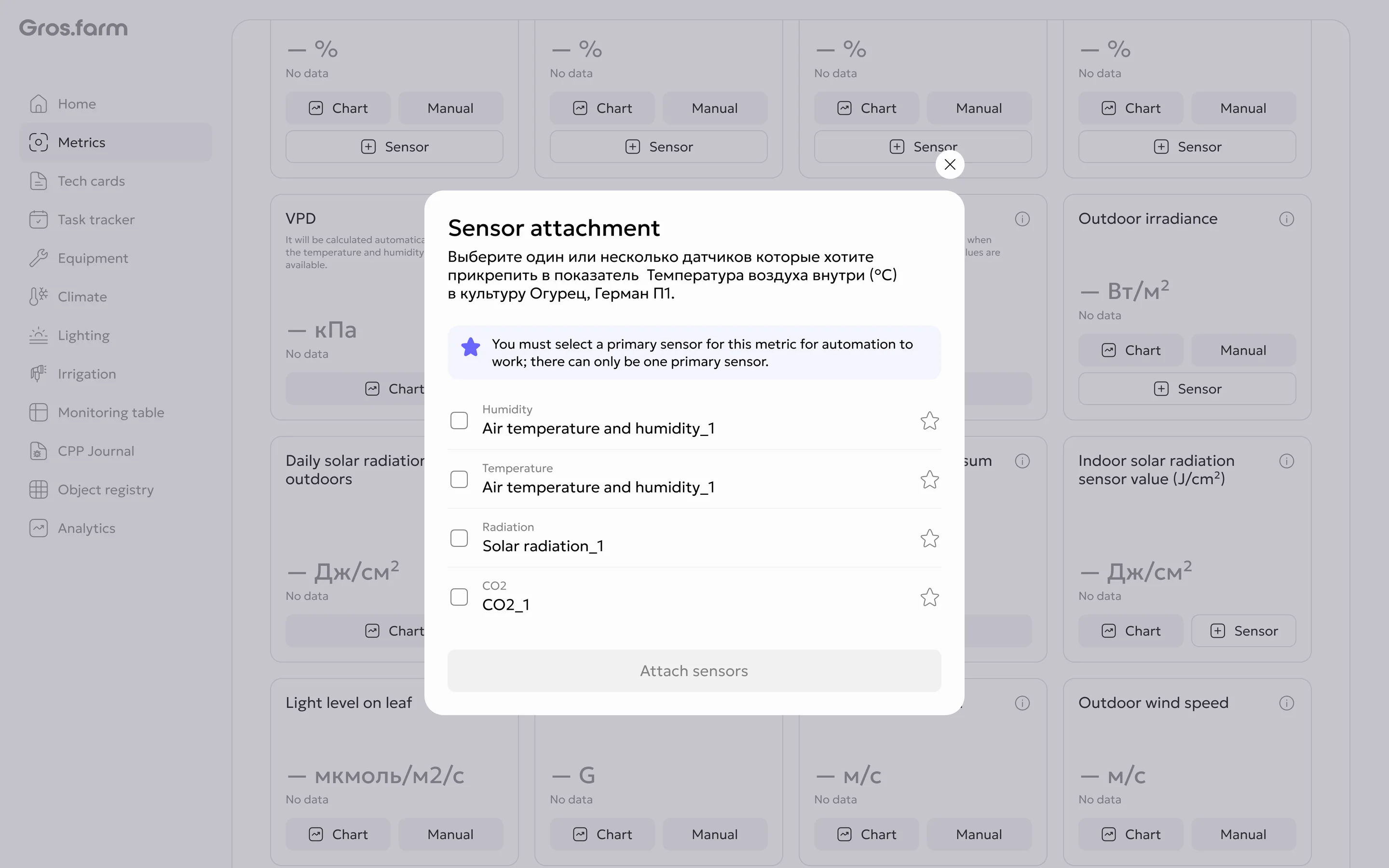
- Find the required metric card and select Sensor.
- In Attach sensor, select one or more available sensors.
- Use the star to mark exactly one sensor as primary.
- Confirm the connection.
The confirmation button remains unavailable until a sensor is selected and a primary source is assigned.
Manage connected sensors
Open the metric’s Chart. There you can:
- add another sensor;
- display selected series or All sensors;
- open source management;
- assign a different connected sensor as primary.
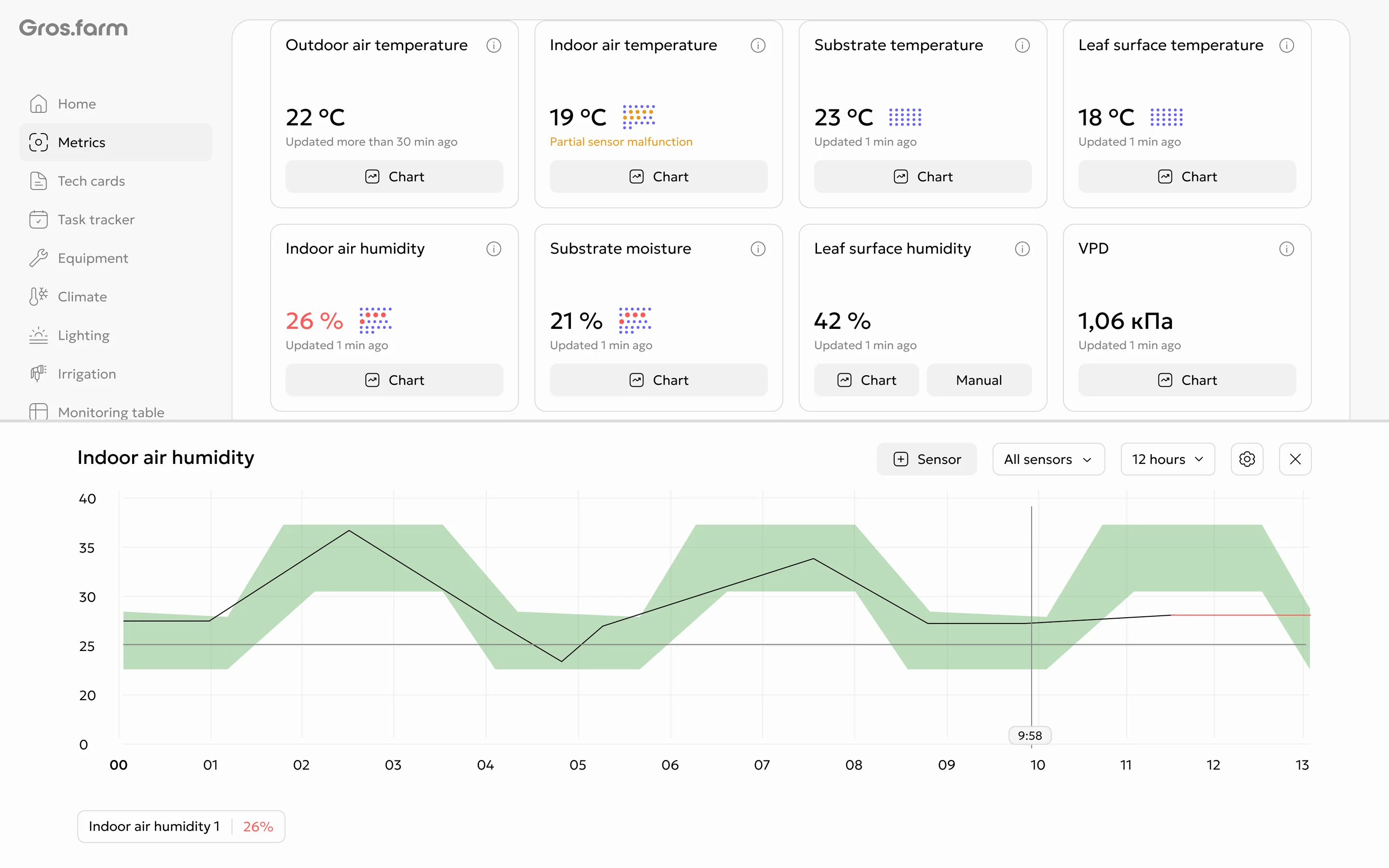
If the primary sensor stops sending data, Gros.farm displays an error and does not switch sources automatically. Check the equipment or select a new primary sensor manually.
After you disconnect the last sensor, the Sensor action returns to the card. If the metric supports manual values, Manual also returns. Historical data remains on the chart.