How to work with the PPP Journal
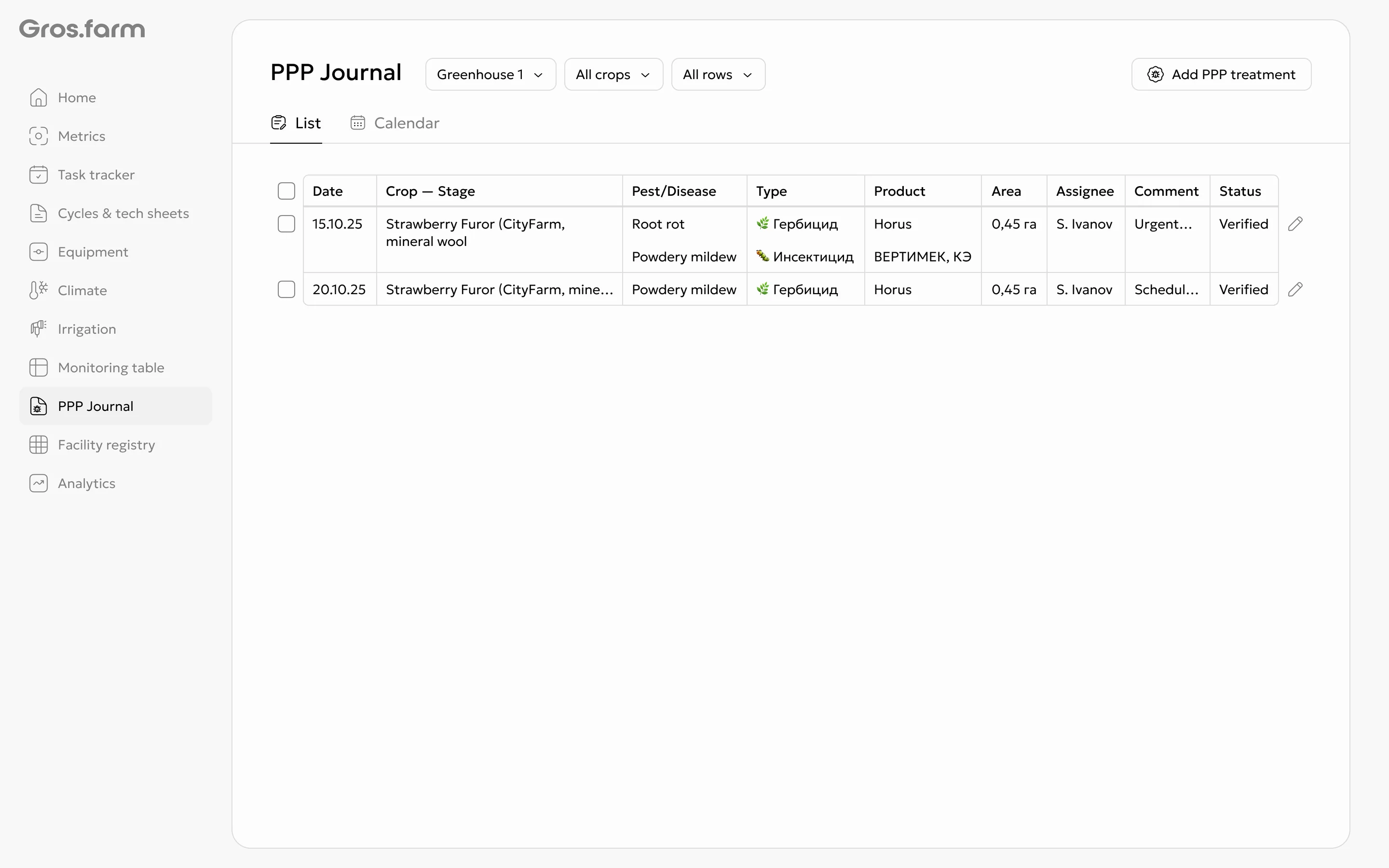
Find a treatment
- Open PPP Journal.
- Choose the list or calendar view.
- If necessary, filter records by production site, crop, or row.
- Select a record to open the PPP treatment details panel.
Create a record
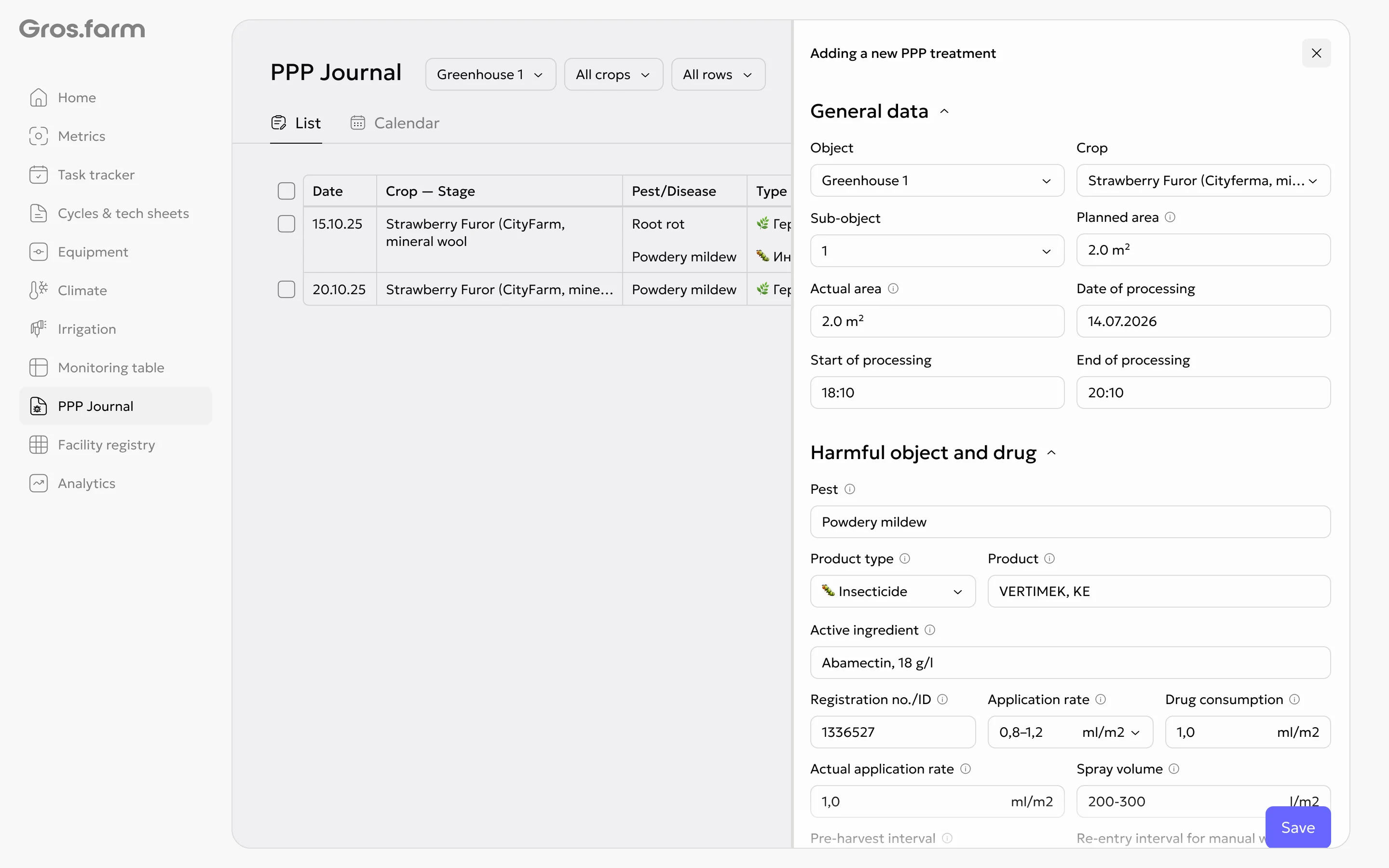
- In the PPP Journal, select the option to add a treatment.
- Enter the general details: production site, crop, date, and treatment area.
- Add the pest and product. One record can include several pests and products.
- Enter the treatment conditions and equipment details.
- If necessary, add safety, regulatory, traceability, and additional information.
- Save the record.
The same product cannot be added twice under exactly the same name.
Enter actual results
- Open the required treatment.
- Enter the actual area.
- Enter the actual consumption for each product.
- Check the calculated actual application rate.
- Save the changes.
The actual application rate is calculated automatically by dividing product consumption by the actual area.
Edit or delete a record
Open the treatment panel. Change the required fields and save the record, or select the delete option.
Owners, administrators, and experts can create, edit, and delete records. Employees have view-only access.
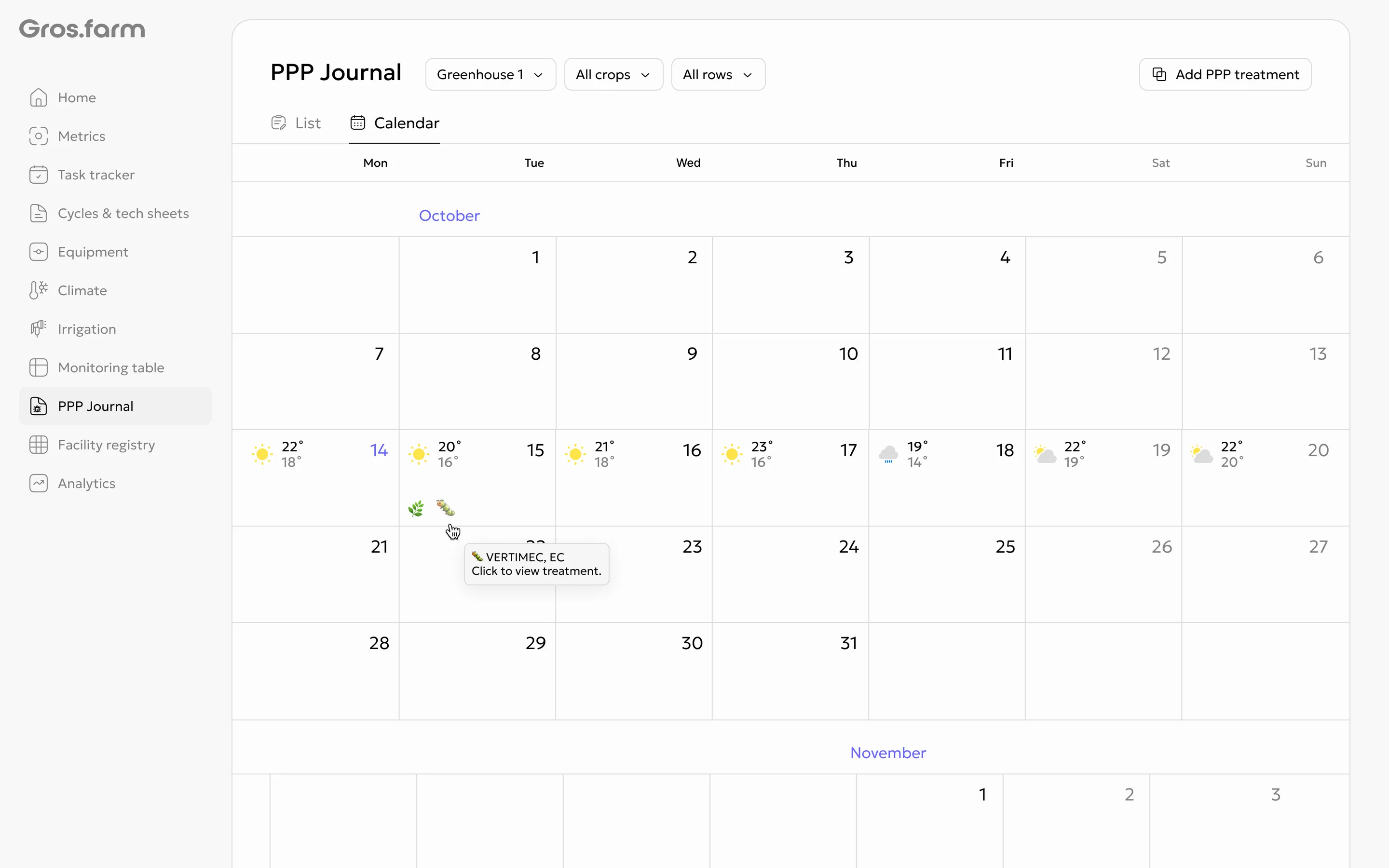
Work with the calendar
In the calendar, hover over a treatment to see a short summary. Select the event to open the full record.
Open a treatment from the Monitoring table
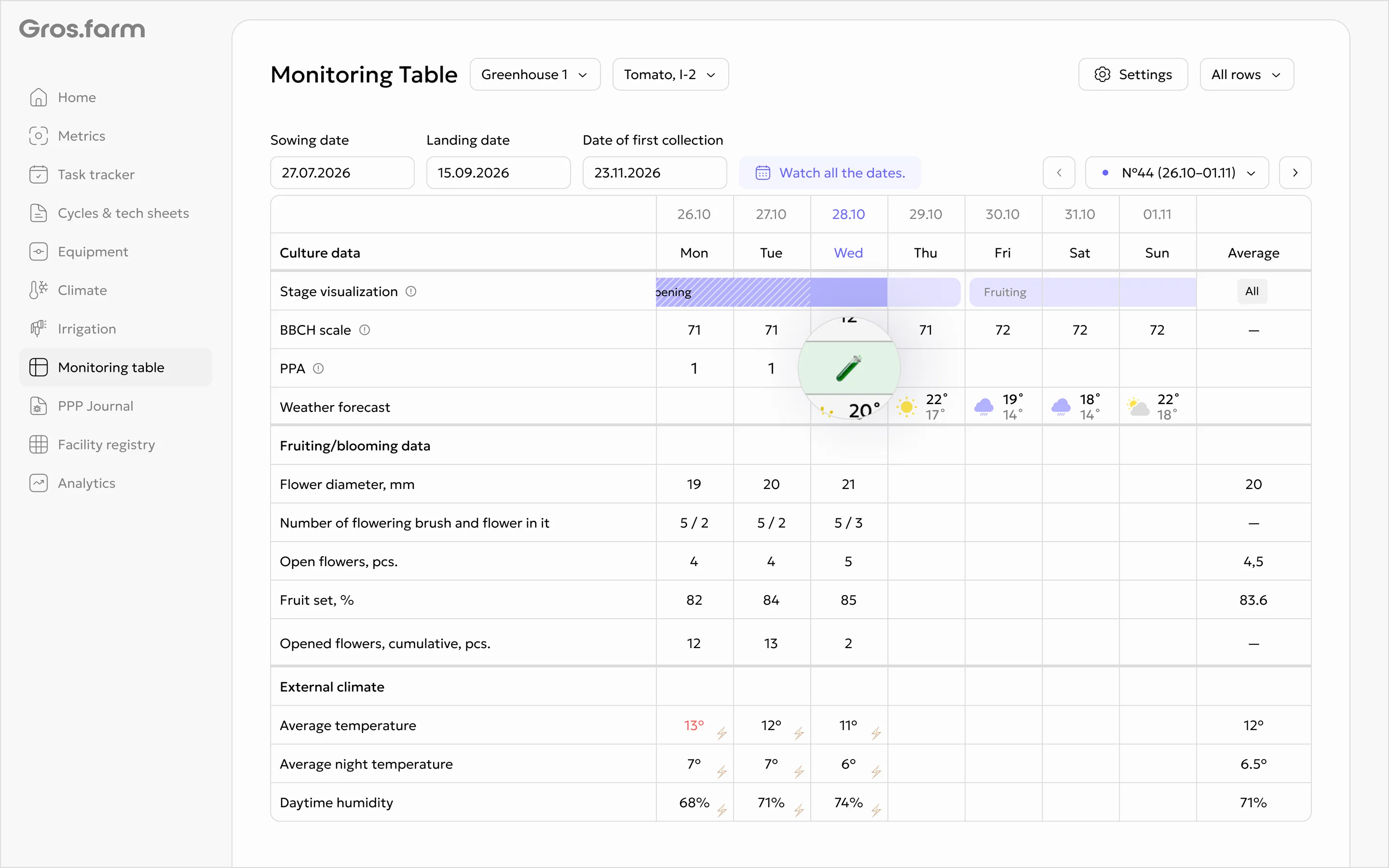
- Open the Monitoring table for the required date.
- Find the separate PPP row.
- Select the row to open the treatment record.
The row shows pests and products. Additional items may be collapsed under a
+N label.