Create and manage a custom cultivation plan
A custom cultivation plan keeps your growing process within the organization and lets you reuse it in new facilities and cycles. It is available on the web and in the Gros.farm mobile app.
Who can manage plans
Owners, administrators, and experts can create, edit, and copy plans. Only owners and administrators can delete them. Employees do not have management actions in My cultivation plans.
Create a custom plan
- Start creating a facility or a new cycle and open plan selection.
- Select Create your own.
- Enter the name, crop, variety or hybrid, and growing conditions.
- Complete the first stage. Its name and duration are required.
- Add descriptions, metrics, tasks, recipes, photoperiod, instructions, and photos as needed.
- Add the remaining stages and save the plan.
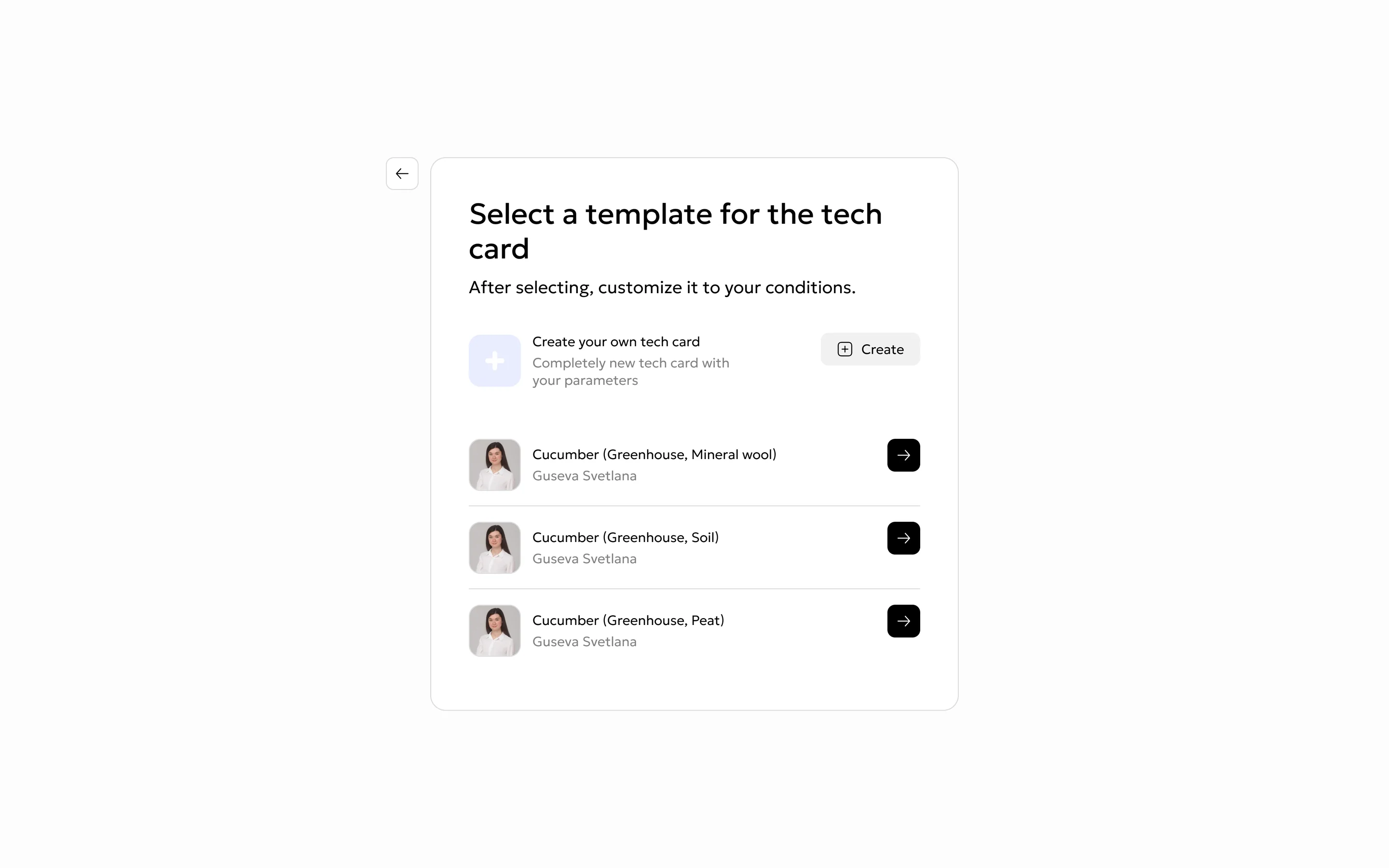
A new plan always contains at least one stage. Optional fields can be completed later. After saving, the new plan opens and becomes available for new facilities and cycles.
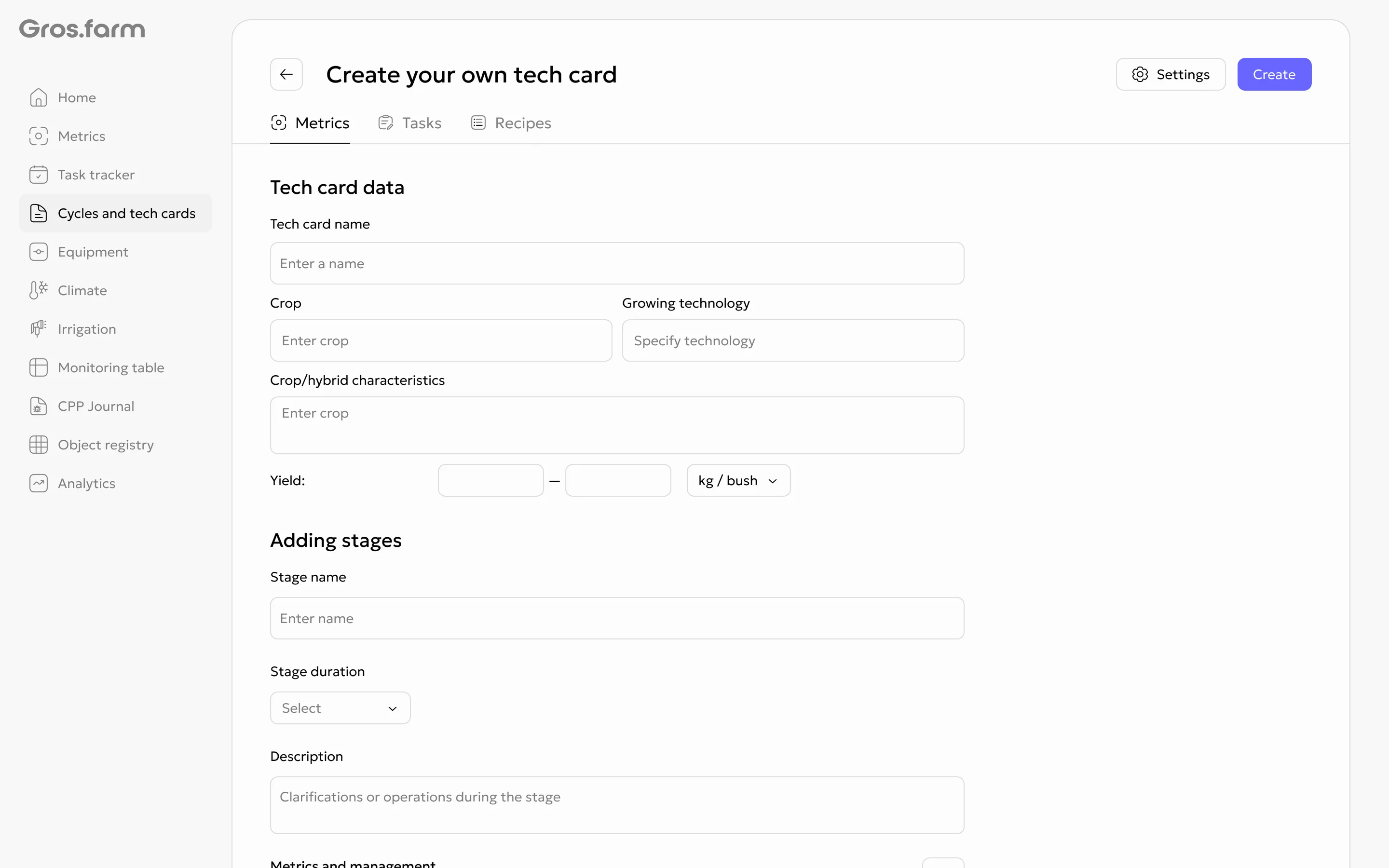
Configure stages
Each stage can contain:
- a name, duration, and description;
- target metrics;
- tasks and instructions;
- recipes;
- photoperiod;
- photos and supporting materials.
New stages appear immediately. The plan cannot be saved without a plan name or without a stage name and duration.
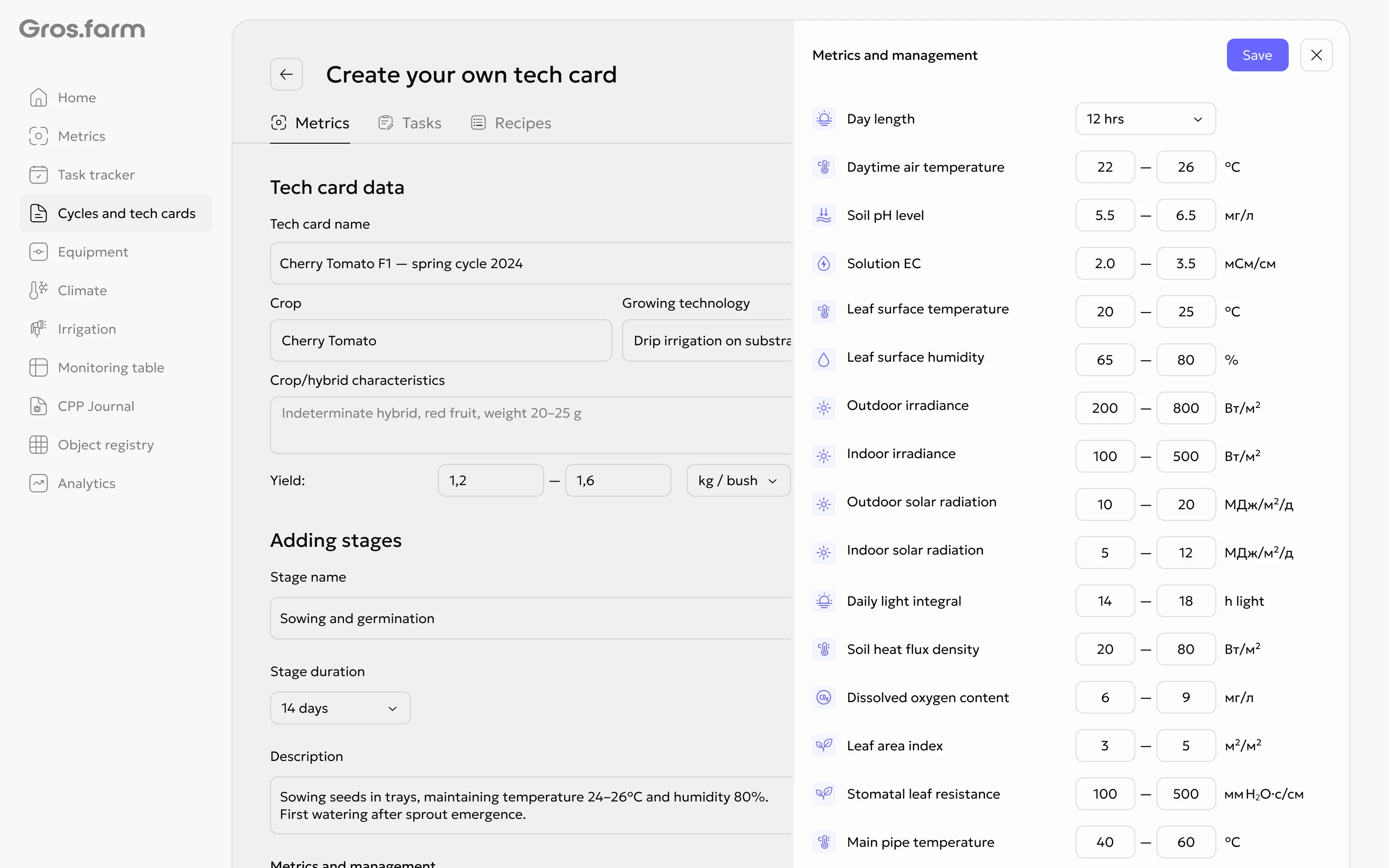
Use My cultivation plans
My cultivation plans contains the organization’s custom plans and private copies of available templates. The list is company-wide and does not depend on the selected greenhouse.
Each card shows its origin, privacy, and the facilities and active cycles where it is used. Completed cycles are not included. A plan with no active usage is marked Not in use.
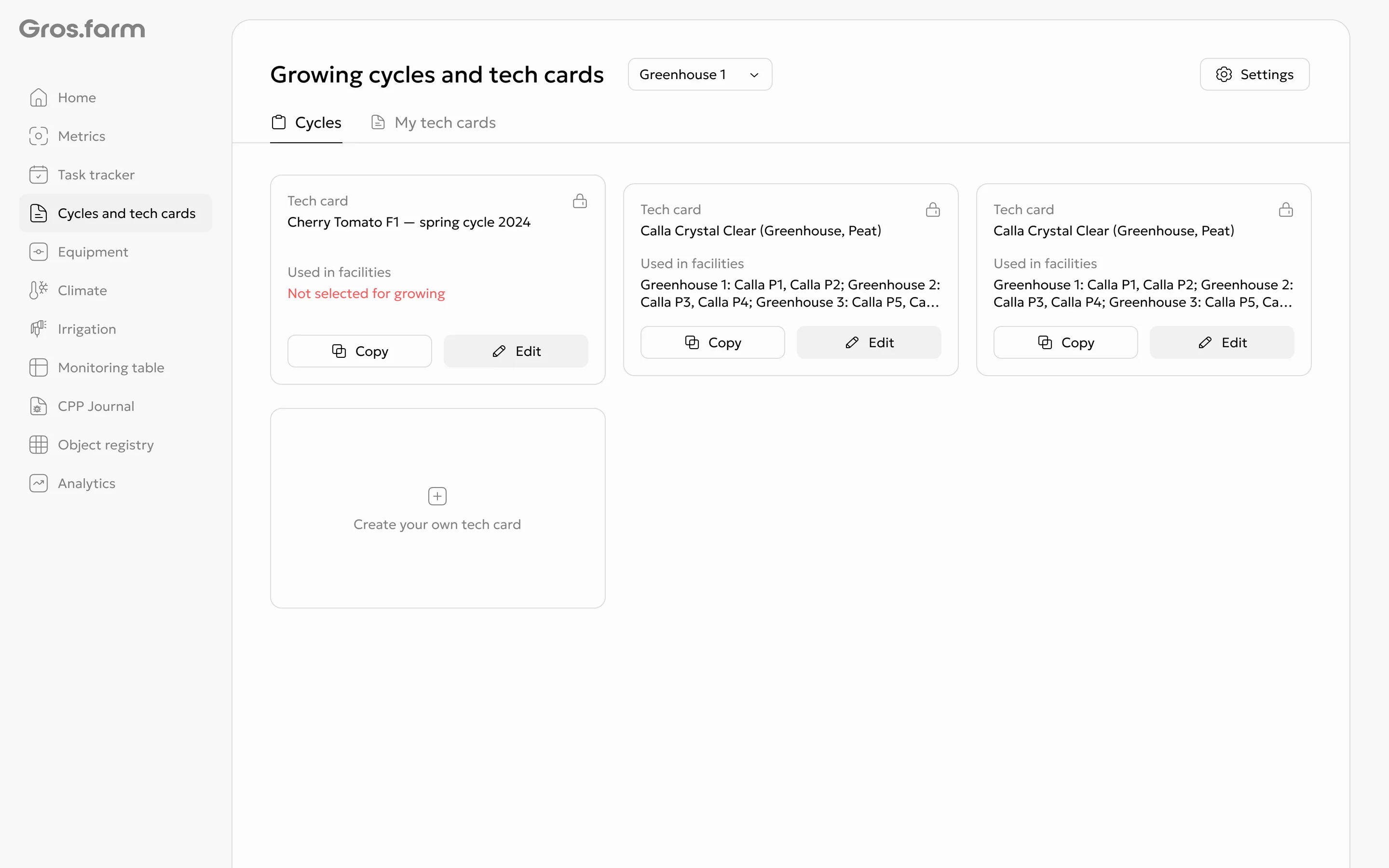
Edit a plan
- Open My cultivation plans.
- Select a plan and open editing.
- Check which active cycles use it.
- Make and save the changes.
It is a shared live version, so saved changes apply to every active cycle using it.
Copy a plan
To create an independent private copy, choose Copy in My cultivation plans. You can rename and edit the copy without changing the original. There is no separate copy action in the general template selector.
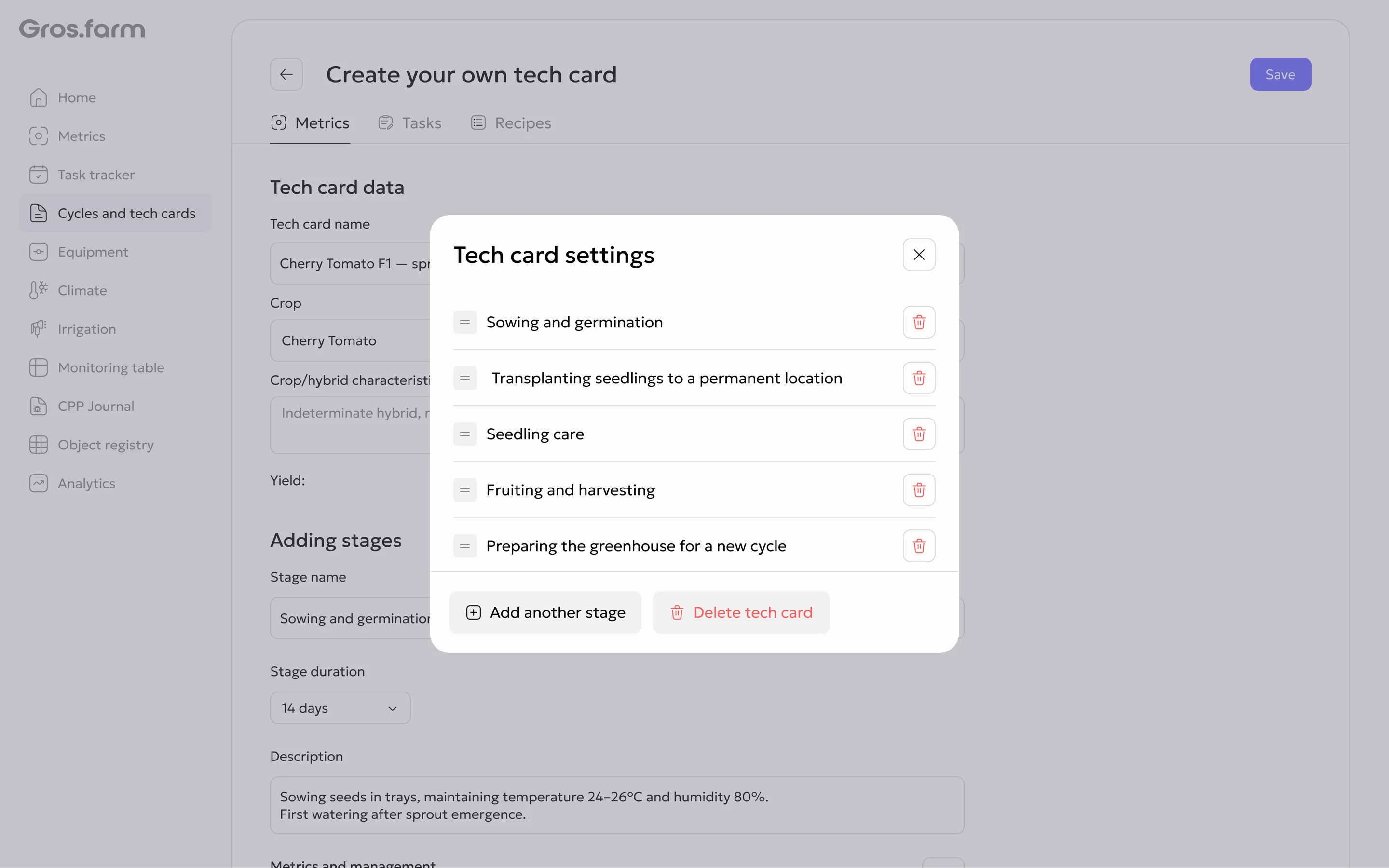
Delete a plan
- Choose delete from the plan menu.
- If it is in use, check the number of affected active cycles.
- Confirm deletion.
The plan is removed and unlinked from its cycles. Facilities, cycles, and their data remain. The affected cycle shows No cultivation plan selected and requires another plan to be selected.
If an action is unavailable
If an action is unavailable, check your role and the required fields. If the problem persists, contact support and provide the organization and plan names.
See Cultivation plans for an overview of the module.